
How to Connect Your SHOPLINE Website with SEONIB
Last Updated:3/18/2026
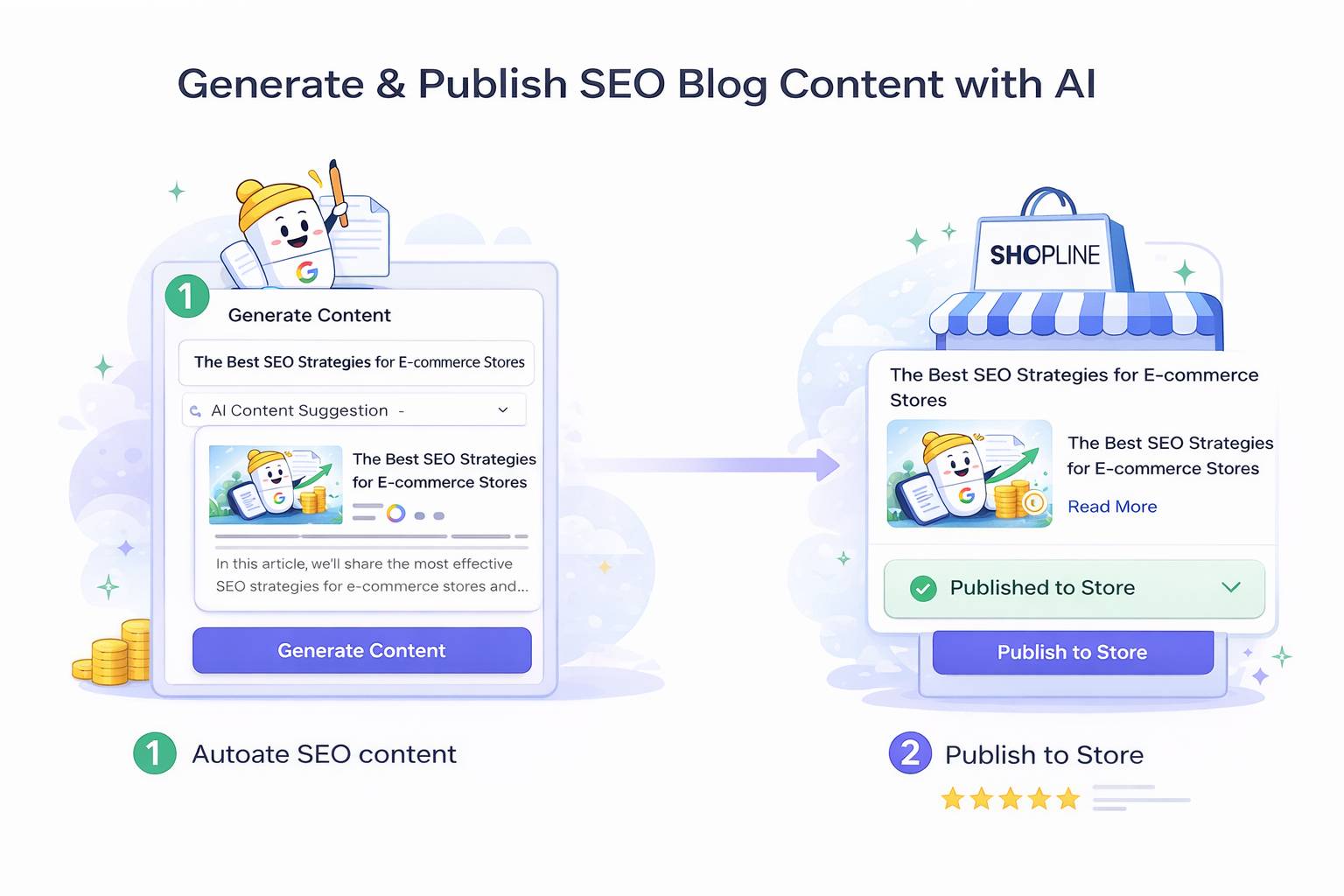
By connecting your SHOPLINE store with SEONIB, you can deploy the AI SEO Agent team to fully automate blog updates for your store, achieving unattended growth from trending topic monitoring to content distribution.
1. Preliminary Preparation
Before beginning configuration, ensure you have: an active SHOPLINE store account.
2. Configuration Steps
Step 1: Access Integration Management
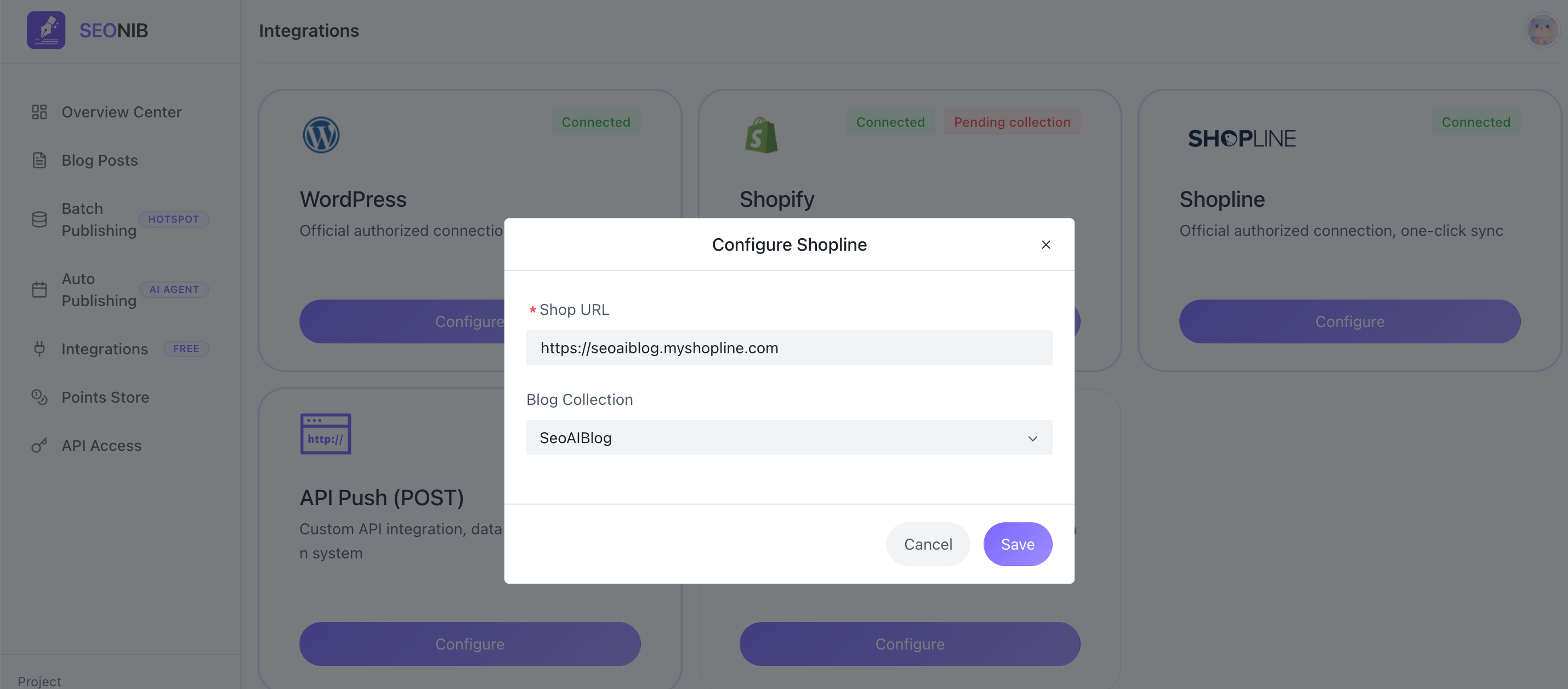
In the SEONIB backend, click “Integration Management” in the left menu bar. Locate the Shopline module in the platform list on the right.
Step 2: Enter Store Information
Click the “Configure” button. In the pop-up window, input the following details:
1. Store URL: Enter your full SHOPLINE store domain (e.g., https://your-store.myshopline.com).
2. Redirect for Authorization: After clicking “Save,” the system will automatically redirect you to the official Shopline authorization page.
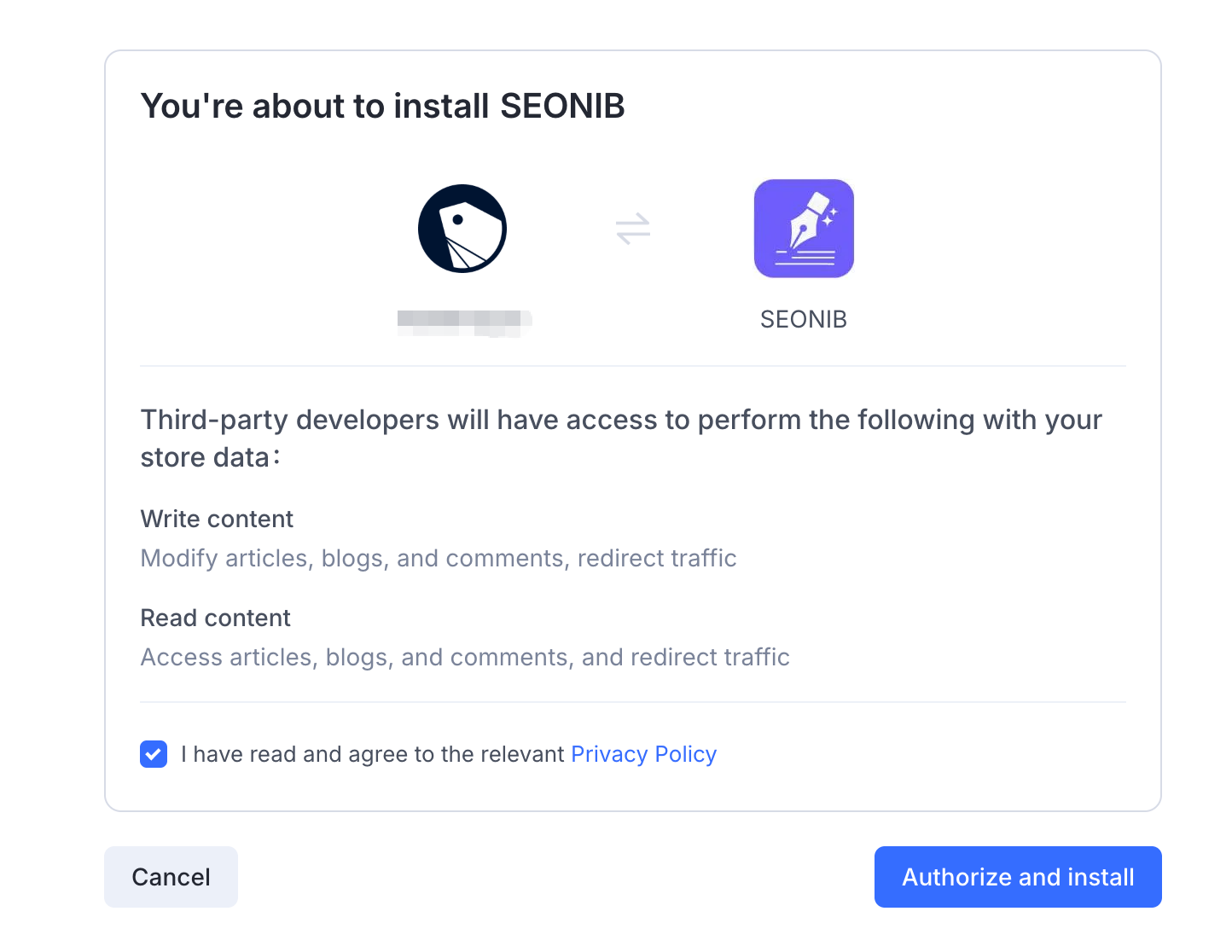
3. Confirm Authorization: Click “Agree to Authorize” to allow SEONIB to read and write your blog content.
Step 3: Complete Blog Collection Configuration
Blog Collection: Select the specific blog category where you want AI-generated content published from the dropdown menu (e.g., Shopline's built-in collection: News).
3. How to Enable Auto-Publishing?
After integration, navigate to the “Auto-Publish” module to create automated tasks:
• Set it once, manage it all: After configuring signal sources (trending keywords), the AI Agent will monitor viral topics 24/7.
• Automatic Sync: Generated in-depth reviews or pain-point solutions will be automatically pushed to your SHOPLINE store blog according to your preset schedule.
4. How to view published content?
After successful publishing, you can verify directly in the SHOPLINE admin:
• Access path: Log in to the admin, then navigate to 「Online Store」 -> 「Blog」.
• Check status: Confirm the article displays as 「Published」 on the list page.
• Verify categorization: Check if the “Blog Collection” matches your preset category (e.g., News).
• Preview online: Click the “eye” icon on the right side of the article to view its actual display on the frontend page.

5. Frequently Asked Questions (FAQ)
Q: Can I connect multiple Shopline stores?
A: Yes. You can create multiple projects, each configurable with one Shopline store, enabling scaled distribution across your content matrix.
Q: Why does the status show “Pending Collection Update”?
A: Click “Configure” and ensure a blog category is selected under “Blog Collection.”
Q: Can I change the published collection at any time?
A: Yes. Click “Configure” to change the target collection. Subsequent posts will take effect immediately.